To view your saved settings, scroll down on the page. You can apply any of these settings to your CUE device by tapping on the corresponding setting tile. When you tap a tile, it opens the settings for that preset, allowing you to make adjustments and save the updated configuration directly.
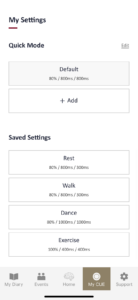
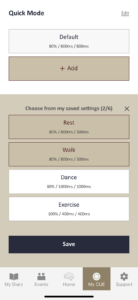
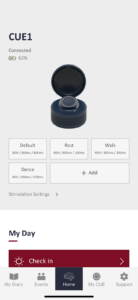
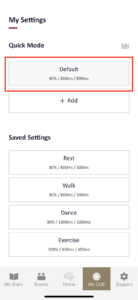
You can also set up Quick Mode tiles on this page, which will appear on your home screen. We suggest selecting the settings you use most frequently. To add them, click the “+ Add” button, select up to 6 presets, and click the “Save” button. Alternatively, you can easily press and drag the tiles to the Quick Mode section. These preset titles will then appear on your home screen for easy access.
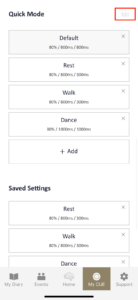
To delete Quick Mode tiles or saved presets, press the ‘Edit’ button to enter edit mode.
*Please note that you need to save your personal settings first before adding them to the Quick Mode.
If you wish to revert stimulation settings to default, simply tap the “Default” button under the Quick Mode section.
If you would like any assistance or advice with this process, please do get in touch with us, and we’ll be happy to help. 🙂